All I Want for Christmas (Next Year) is My Apple TV

I want what you want: a new TV with the smart design and feature set that ties into the rest of my Apple gear. I want to be able to use Mail and Safari, Pages and Keynote, YouTube and Dropbox, and I want it all on a 45-inch screen that I can operate with an iPhone or iPad. I want to use my Apple TV for FaceTime with friends and family–a telephone that is also my TV screen. I want apps that work across TV, phone and tablet platforms, and more apps designed for the TV. I want a lot of stuff… but I haven’t thought about this nearly as much, or in as much detail, as Jeremy Allaire, the CEO of BrightCove, a forward-thinking cloud-based software provider. Below, a sample screen from a wonderful guest article on All Things Digital by Allaire, followed by the link to his article. Have fun!

8a-apple.com-tech-specsHave a look at the article “All I Want for Christmas is My Apple TV” here.

Your New TV: The Ideal Screen Dimensions

Watching television in 1958.

Buying a new television set is not easy. Some stores tweak the settings of their TV sets, some tweak the lighting, some show the sets with no adjustment whatsoever, and others optimize to make each set look great. Of course, all of this is utter nonsense because no store can reproduce the environment where you will be watching at home. The next time you visit Best Buy, do not make any judgment about brightness, color rendition, or other qualities of the image–whatever you see in the store, it won’t be what you see at home.

There is one thing you can do in the store, of course. You can stand in front of the screen and wonder whether the set will be too big, too small, or just right for your room. Actually, you probably shouldn’t stand in front of the screen. Instead, with the set at eye level (not mounted six feet above your head), you can make a reasonable judgment. Here’s how.

Before you leave home, grab a tape measure. You’ll want one person to sit down in the chair where they are most likely to watch TV. Measure from the tip of the person’s nose to the place you intend to place the screen. In most American living rooms, this dimension will be about 10 or 12 feet. In smaller rooms, it might be 7 or 8 feet. Just for the sake of example, let’s assume the measurement equals 11 feet. Jot down this calculation:

  • Feet = 11
  • Inches per foot = 12
  • Inches from nose to screen = 132
  • Divide by THREE = 44 inch screen maximum
  • Divide by FOUR = 33 inch screen minimum

Try that again, this time with a larger distance to the screen, say, 16 feet. That’s pretty far away, larger than most U.S. living rooms. Here’s how the numbers look:

  • Feet = 16
  • Inches per foot = 12
  • Inches from nose to screen = 192
  • Divide by THREE = 64 inch screen maximum
  • Divide by FOUR = 48 inch screen minimum

Sure, we’re Americans! We love our television screens!! We want them as large as possible!!! (You’ll find article after article insisting that bigger really is better. For some people, that’s true. For most people, nose-to-screen distance is not more than 9 feet–not 11 or 16 feet as in our illustrations above). Add 10 or 20 percent if you’re VERY serious about sports or movies. Add 50 percent if your entire life revolves around a home theater.

No doubt. Certainly, many retailers would certainly prefer that you buy a set that costs $2,000 or so instead of $1,000 or less. For most principal viewing conditions, a TV in the 46-55 inch range will be suitable. For a bedroom, the answer is probably under 40 inches.

Hey, one more thought. There’s a lot of confusion about LED vs. plasma screens, and if you’re not lucky enough to connect with a knowledgable floor sales person, you could make a poor (and heavy) decision in the wrong direction. LED sets are bright and ideal for rooms where there’s lots of ambient light. Good for spots, not so great for movies because their color rendition is, well, extended and somewhat unnatural. Plasma sets are not as bright, but they do a better job with skin tones and lifelike color rendition. But they run hot, use more power than LED sets, and tend to be heavier, too. If your room has any significant ambient light (coming from windows or fixtures), you may be spending a lot of time fighting reflections. For several years, plasma sets were not popular, but a renewed focus on this technology, especially from Panasonic and Samsung, has resulted in plasma screens now widely available, even from big box retailers.

Before you buy, study the reviews. Editorial reviewers have the benefit of seeing many sets under the same (simulated real world) viewing conditions, so their comments are often more meaningful than the advice of people on the sales floor. I think cnet does an especially good job with TV reviews.

One more thought. I’m sitting here writing on a 21-inch iMac, a computer whose screen I regularly use to watch videos. The screen is not much more than a foot from the tip of my nose, so there’s no way that my formulas make any sense for those of us (lots of us) who watch videos, and the occasional movie, in this way. That makes me wonder whether we’re again crossing the great digital divide to some new way of thinking about the relative sizes of humans and their screens. Maybe our next screens will seem small at 100 inches. Maybe one wall of every room will be a TV screen. Heck, maybe every wall of every room will be a screen. Lots to think about!


New Cameras – The Best of Photokina

Every two years, Cologne, Germany hosts the world’s greatest photography trade show. This is the year, and these are my notes on the most interesting of cameras that are small, lightweight, and extremely capable. Over time, I will write about some of these products in more detail. Most are announced but not available in stores.

One of the coolest new cameras: Sony’s Cybershot DSC-RX1. The sensor is “full frame”–that is, the size of a 35mm film negative (about an inch high). At just under $3,000, it’s beyond the budget barrier for most of us. But don’t lose hope: 2012’s state-0f-the-art may well be 2014’s under-$1,000 camera. We’re seeing more and more full frame sensors, and prices are coming down. So why is this camera worth so much money?  Lenses are not interchangeable: your investment buys a single 35mm lens (f/2) attached to a 24 megapixel camera. It’s a small camera with superior build quality, and, if it performs as promised, quite good in low light situations. For more, see Digital Photography Review’s preview.

For several years, Sony has been producing cameras in the NEX range: small APS-C sensors in thin, sleek bodies with outsized lenses. The NEX-6 is priced at $999, offers 16 megapixels, and offers some features unavailable in Sony’s higher priced NEX-7.

Two years ago, at Photokina 2010, Fujifilm introduced a state-of-the-art, retro-in-look-and-feel camera fixed lens camera called the X100. The lens was a wide angle, the color rendition was extraordinary, and it offered a built-in hybrid viewfinder (easy switching between optical and electronic viewfinder). A year or so later, Fujifilm built on the franchise with an interchangeable lens system for serious amateurs and professionals, the XPro1. Now comes the XE-1, similar to the XPro1 but smaller, lighter, and an electronic (but not optical) viewfinder. It’s a 16 megapixel camera that costs about $1,400.

The Fujifilm XF1 in brown. Also available in black or red.

Just about everyone will want the new, simple, high quality Fuji XF1 with its 4x zoom and 12 megapixels. Why? It’s small, fast, and looks great. Small: 4.2 inches wide, 1.2 inches thick, 8 ounces. Fast: largest aperture is f/1.8, so you can shoot in reasonably low light without a flash. Looks great: yes, it’s a bit of a fashion accessory (see the website), but it’s also a straightforward camera for a serious photographer. It’s a 12 megapixel model, and it costs about $500.

For those with greater ambition, some tolerance for a slightly heavier camera, and more available cash, Fujifilm’s X-E1 is an interchangeable lens camera with a lower price than Fujifilm’s much-coveted X-Pro1. This is, arguably, mirror-less digital photography at its 2012 peak. The X-Pro1 includes an optical/digital hybrid viewfinder; the XE-1 offers only the electronic version.

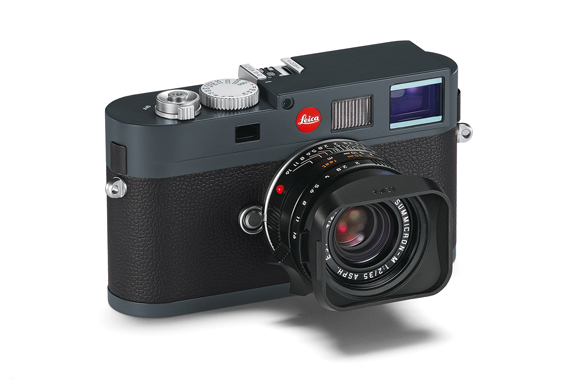
The new Leica M-E digital camera.

Leica’s new M-E provides a Leica-universe starter camera priced at 3,900 Euros (about $5,000). It’s a full frame 16 megapixel camera. Even more pricey is Leica’s new full frame digital M camera with 24 MP and an available external viewfinder. For more about Leica’s new M camera, and their current digital camera philosophy, read this interview with Leica product manager Jesko von Oeynhausen.

Over at Canon, I found two new, intriguing models. The EOS-M is sleek and small MORE. The latest in an impressive line of self-contained (no interchangeable lenses) models is the G15, now with a faster F1.8-2.8 les. It’s less bulky than the current G12, but dispenses with the handy pull out / pull up / pull down “articulated” rear screen.

Nikon has added orange colored cameras to its Nikon 1 line.

Panasonic’s GH3 was recently announced.

At Panasonic, the GH3 is the big news–a full-featured DSLR style camera, and although its mirror-less design suggests smaller size, it’s about the size of an entry-level DSLR. The GH3 is a more versatile multimedia performer than most cameras in its class. It shoots in several video formats, MP4, MOV, AVCHD or AVCHD Progressive. WiFi connectivity allows the camera to be operated from a computer. No specific pricing yet, but the camera will probably cost between $1,500 and $2,000.

The OM-D was released by Olympus earlier this year.

Olympus is again getting things right. For serious photographers, there’s the new-ish OM-D and for smart amateurs. This smallish camera offers an ideal combination of reasonable price, very good color rendition, a built-in viewfinder, lessons learned from several excellent PEN model cameras, and the promise of a new line of professional cameras that can be carried anywhere without worry about weight or size. What’s more, the video quality is quite good, and the camera handles beautifully. This is camera that you ought to consider against just about any of the others in this article. And if the OM-D is more camera than you need, Olympus offers several good options in the PEN line with interchangeable lenses and a nice range of accessories. New at Photokina 2012, and soon to be in stores, there’s a revised version of two lower priced PEN models (which use the same lenses as the more sophisticated OM-D): PEN Mini (E-PM2) and PEN Lite (E-PL5).

Samsung has been making serious inroads. The NX210 replaces the NX200, offering both style and ergonomic improvements and 20 megapixel resolution, and some useful new features, including wifi connectivity for image transfers to your computer. Samsung is a relatively new name in the photo industry, so it’s easy to overlook the huge advances these guys have made in a systems approach to photography–there are lots of lenses and accessories available for the growing NX line, fashionable cameras in white, very good ergonomics, interesting features, lots more.

The new Hasselblad Lunar.

Hasselblad ‘s new Lunar is a luxury camera that resembles one of Sony’s NEX models, and, in fact, uses the same A-mount lenses that you’d use on the NEX cameras. This is a very high-tech 24 megapixel camera with a very fast processor and a blingy exterior (there are a variety of handgrips made from exotic woods, etc.). It costs 5,000 euros (about $6,500)–a price that may be difficult to justify in the era of cameras that remain state-of-the-art for just a year or two. For more about Hasselblad’s approach, see this article in the British Journal of Photography.

Well, that’s quick overview. If you’re looking for a more extensive roundup, you can visit the largest booths (stands, in Europe), virtually, by exploring the Digital Photography Review section on Photokina 2012.

After many productive (35mm film) years with a Canon A-1, I decided, just before the digital deluge, to invest a really good film camera. The year was 2000. I kept the Leica catalog, and found my written notes inside the back cover. I was considering the Leica M6–one of the finest 35mm cameras every made. The cost of the body was about $2,000. Each of the three lenses cost $1,000-2,000. Total package price: about $7,000. (I ended up spending a lot less money for a wonderful used Hasselblad 501CM with two lenses). At the time, I had the feeling that my investment would stand the test of time. A decade later, film photography is retro fun, but digital rules the day. Now, I wonder whether a $2,ooo camera will stand the test of time. And I’m less secure now than I was in 2000. And I still spend far too much time thinking about cameras, and far too little time actually taking pictures.

See also:

https://diginsider.com/2012/03/20/the-quality-camera-that-goes-everywhere-part-1/

Soundbar vs. Surround

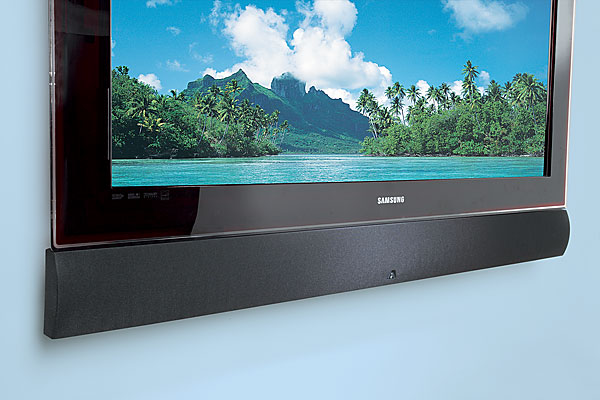
From the Crutchfield site (the image is your link), a look at an Artisan soundbar mounted just below a Samsung flat screen TV set. Although visually appealing, inexpensive and easy to install, soundbars don’t always play well with TV sets. What’s more their sound quality is outdistanced by even a modest surround sound system.

Roughly 4 out of 5 American households now watch television on a flat screen. A smaller number have made their new TV sets part of a full-scale home theater with a proper surround sound audio system. If you haven’t yet taken the plunge (many people do not, mostly because of the wiring and additional equipment required), consider a soundbar.

What’s a soundbar? It’s a long, slender box that’s meant to be placed, or mounted, several inches above or below your flat screen TV. Inside the box, you’ll find at least three loudspeakers: one on the left, one on the right, and one in the center. These easy-to-install setup effectively replaces the older idea of three standalone boxes (one for the left stereo channel, one for the right, one for the center audio channel used in a surround sound setup). Packaged as a single unit, the soundbar is less cumbersome, requires less space, and fits into any flat screen setup.

A typical setup is best enjoyed with at least three additional loudspeakers: a sub-woofer (to emphasize the sounds heard in the lowest portion of the audible spectrum), and a pair of rear speakers (to provide the same 3-D effect that you hear in movie theaters).

Polk Audio’s SurroundBar  (several hundred dollars) is not typical. Patented technology provides the 3-D effect without the addition of rear speakers. Yamaha’s more costly (nearly $2,000) solution, the YSP-5100,  does the job with more sophisticated technology to provide even better sound.

Many soundbars offer a wireless connection to a nearby sub-woofer. (Personally, I prefer wires because they’re easily hidden and more reliable).

It’s all a fine idea, at least in theory. In practice, the concept is new and often tricky in a real world setup. Most TV sets are not yet designed to work with a soundbar so there are conflicts and problems associated with volume adjustments and the visual feedback that a typical on-screen volume control provides. CNET reports other issues that should be familiar to you before your purchase a soundbar.

Seems to me, the soundbar falls into the category of “good idea, but it needs work.” Personally, I prefer the superior sound and slightly more complicated setup of a small surround sound setup. One small loudspeaker left and right, one in the center, and you’ve spent about $300 comparable to a typical soundbar, but the stereo separation will be far better, and the hassles will be fewer. You can buy a decent stereo surround sound receiver for under $200. (If these prices are high, you can buy good stuff used at Audiogon or from similar sources. A subwoofer can be purchased at reasonable prices, too, and used gear in this category is often a safe bet.

Next-Generation Camcorder

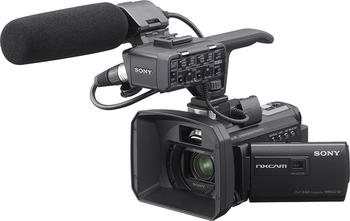
Just when you thought you’d need only your cell phone to shoot video, Sony introduces two new ideas that may change the game a bit: a gyro-stablized lens and a built-in projector. Have a look at the new, remarkably small Sony HXR-NX30, a $2,000 camcorder just arrived from the future.

Weighing about two pounds and stretching to a foot with battery attached, this small HD camcorder solves a constant problem for journalists and other hand-held videographers: the gyro system is, essentially, a built-in Steadycam-like feature. Without the extended balance mechanisms. Small enough to tuck into a medium-sized shoulder bag.

The built-in project is fairly modest, more useful for screening the days’ work on a hotel wall than for a public screening. Still, the projected images can be as large as about three feet (diagonally), and if they aren’t beautiful HD quality, they are far, far better than the images you’d be watching on the built-in 3-inch LCD screen.

Although the results are suitable for professional purposes, this is, in essence, a prosumer camcorder. It’s nice to see nearly 100GB of built-in memory (which goes quickly when shooting in HD), and it uses SD cards. There are XLR connectors for professional microphones, and a decent amount of control for just about every application. And there are a gaggle of other useful features, all common in this price category.

The news here is the built-in stabilization. Many will purchase this camera for that feature alone. And, hopefully, we’ll see lots of cameras with a similar feature–it should become standard in two or three years.

A Great Idea for Great Ideas

Once upon a time, OmniGraffle software was provided free with every Apple Mac computer. That’s how I learned about it. Now, I use OmniGraffle on my iPad and the desktop. When it comes to sketching out ideas, and presenting them in a clear and colorful manner, there is no better (or easier-to-use) product.

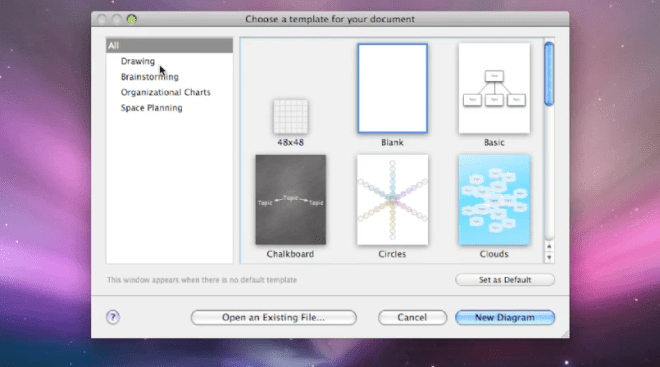
So, what does OmniGraffle do? Well, it depends upon what you want it to do. Start with a blank sheet, or some on-screen graph paper, or set yourself up for a cloud cluster (also called a mind map), or a whiteboard, or a chalkboard. There are connected notes, so you can use it as a kind of bulletin board, Whatever works for you, you’ll find the basic template in the full Standard or Professional version for use on the Mac (a great many features are available on the iPad version, which may suffice for some users).

Choose the template, then start drawing. Easy enough to begin with a box, color it, shade it, add text, make a copy, the sorts of things that you do in PowerPoint or Keynote all the time. Here, the tools are more varied, more versatile, including a bezier tool to draw shapes as you would in Adobe Illustrator (if you don’t know how to do this, it’s worth asking someone for help, but once you understand how it works, you’ll find yourself using this tool quite often).

So, let’s say that you begin with a free-form drawing, a visual exploration, a sketch to explain an idea to yourself or to others. It begins to make some sense, so you want to change its form, maybe move into a cloud of connected ideas, or a set of related on-screen index cards, or an organizational chart with colors to indicate levels or positions. Easy to do–this software is designed for versatility, and for intuitive thinking. The results can become quite sophisticated–and yet, they are not difficult to pull together, even under the pressure of time.

Automatic layouts save time, and make everything look a lot tidier, a lot more clear. There’s quick and easy access to frequently used tools, like color palettes and the font selector. There’s a user community called Graffletopia that creates “stencils” that can be used to create, for example, a director’s plan for film, or visualizations for software programmers. Browsing through Graffletopia, the utility of OmniGraffle becomes very clear: this is a visualization tool for working professionals. It’s easy to use, versatile, and, you’ll find, quite popular among certain knowledgable groups.

OmniGraffle is not a drawing tool, but instead, it is a tool for making (and easily revising) diagrams. I like the language from Omni’s website: “OmniGraffle knows what makes a diagram different from a drawing, and gives you the tools to create amazing diagrams quickly and easily. Lines stay connected to their shapes, unlike with illustration programs, where you would have to redraw your diagram every time you moved something.” As someone who often uses visuals to explain–and has become quite tired of the limitations of, say, Keynote or the level of sophisticated required for Adobe Illustrator–OmniGraffle feels just right to me. I find that the interface is intuitive (best if you’re already a Mac user), and that, from time to time, I need to take a moment and figure out how a tool works. That’s good–it’s just a few steps more sophisticated than my current abilities.

Most of the time, I’m sketching a diagram between meetings, capturing the basic idea. And although I can complete a pro-quality diagram on the iPad (and often do), I find myself in need of some certain advanced features, such as import/export from/to Visio (a Windows-only product). Most of the time, my diagram is on the simple side: colored boxes with type, perhaps a cloud to indicate an interesting idea. By holding my finger down, then dragging, I can group my clouds and/or boxes. Better yet, a smart selection tool allows quick selection of, for example, just the blue rectangles. I can create Adobe-style layers, then copy, or turn them on and off. Very handy, qick, and effective. Easily learned, too, in daily use, the iPad version has proven to be extremely useful, in part because it combines some of the best features found in OmniGraffle Professional (such as tables) with a sophisticated automatic diagramming tool, and a freehand tool, too.

To be clear, there are three different OmniGraffle products, each with its own unique set of benefits.

OmniGraffle for iPad costs $49.99 from the AppStore–a high-priced product that turns out to be a very good value because it does so much, so easily. OmniGraffle Standard, for Mac, costs $99.99, and OmniGraffle Professional, also for Mac, costs $199.99. Compare their features here. And, happily, you can get a free trial download for either of the Mac products (and any of the many excellent OmniGroup products). They do things the right way. It’s impressive.

Easy-to-Use Audio Studio-to-Go

The Zoom H4n has become one of my favorite tools, but most people have never heard of it, or seen it, or even know that such a thing exists.

Zoom makes portable audio recorders–pocket sized recording studios about the size of Sony’s original Walkman, but so much more versatile. This is the ideal companion for a digital camera or camcorder–with far better sound, and far more control over the recording process. It’s ideal for recording of music rehearsals, recitals, and performances. It’s handy for audio interviews, and for the recording of meetings. With proper cabling and a phono pre-amp, you can digitize your vinyl LPs. It’s a useful four track audio recorder, so you can use it to make a record. And, of course, you can use it to listen to music, speeches, podcasts, any audio recording with remarkable fidelity because everything is digital.

Let’s take it from the top…and the bottom.

On top, there is an X-Y (crisscrossed) pair of small microphones. The quality is good, the sound is clean, and they can each be adjusted to cover either a 90-degree pickup area (for more intimate situations or to reduce unwanted noise), or a 120-pickup pattern (to pick up a wider area). Or, plug one or two professional microphones into the bottom (1/4 inch phono plugs or XLR connectors). Or, plug an 1/8 inch mini stereo cable into the mic jack on the back). Control the input level by watching digital VU meter on the small golden screen (backlit when necessary) and adjusting the rocker switch with one finger during the record session.

Here’s a closer look at the screen. No, it’s not iPhone quality, but yes, it’s functional. Time code runs on top, file number next, then sound levels. Buttons below allow track selection, and in another mode, allow selection of files and formats. Buttons are small, screen is small, but everything works fine in the field.

You can choose to record in either .wav (high quality) or .mp3 (low quality, but smaller file sizes) at various sample rates. In multitrack mode, you can record on each of up to four tracks, or play back on up to three of them. Buttons are small, but overdubbing is within the capabilities of this little machine, and that’s useful if you are recording your own tracks for a music demo, for example, because you can listen to your primary vocal while laying down a harmony track, for example, or listen to the drum track while playing your saxophone).

For more sophisticated work–and an easier time–use the Zoom H4n as the interface between, say, your microphones and a more robust Digital Audio Workstation (such as Logic Pro, Garage Band and Samplitude), but, sadly, not ProTools, which requires only M-Audio devices.

Need a metronome or a guitar tuner? They’re built-in, too.

You will record on an SD card. Power comes from either an AC cable or handy AA batteries. You can plug the Zoom H4n into your computer via a USB micro connector. If you need more battery time, flip into “stamina mode” which shuts down some features and dramatically increases recording time (6 hours in normal mode, 11 in stamina mode).

 The Zoom H4n is all so well thought out! I wish every product was as thoughtfully designed!

Recently, I used the Zoom to record audio interviews while recording video interviews on the Olympus PEN EP-3 digital (still) camera. I placed the Zoom just out of frame, and later, in editing, matched the audio track from the Zoom with the EP-3’s video and audio tracks (once synchronized, the Olympus audio track was muted, and subsequently, replaced). Under the right circumstances, this is a better solution than a wired external microphone or a finicky wireless microphone. What’s more, the Zoom provides broadcast-quality results. The sound quality is fabulous. And because the Zoom is small, it fits into my small shoulder bag alongside the small micro four thirds Olympus PEN EP-3. This is a complete HD quality remote shooting rig that I can easily carry in a shoulder bag with plenty of available space for an iPad, wallet, cell phone, ear buds, and (much) more. Add a 32GB SD card, and I can carry hundreds of record albums with me, just in case I feel like listening, not recording.

There is so much more. If you’re intrigued, simply download the instruction manual.

The Zoom H4n price: under $300. And, for $199, you can enjoy a similar device with reduced features with an H2n (seems less sturdy to me, though). And if that’s still too much, Zoom offers a $99 alternative, model H1.

4K will be 4x better than HDTV

Even higher definition TV. Much higher. With 3D. Without glasses. We may never leave home again.

So says long-time consumer electronics public relations executive Lois Whitman in her blog, DigiDame. According to Lois: Current HD maxes out at 1080 lines or a 1080p picture. 4K HD is 4096 lines, or 4096p.

Ars Technica is a whole lot more critical.

IMHO, this is going to make spectrum reallocation more complicated. Right now, television stations and broadband operators are wrangling to use over-the-air spectrum for delivery of, well, television and broadband services. HDTV is a heavy user–and this new 4K technology will require a lot more bandwidth. Perhaps not over-the-air bandwidth, which might be put to better uses, but when we consider the available bandwidth built out by cable and satellite operators, well, 4K is likely to overwhelm their infrastucture, too. We’ll need new superDVDs or some other medium to carry the data associated with this new format… and I’m certain that will arrive soon enough.

As we Americans (and folks around the world) consider public telecommunications policy and the use of all sorts of bandwidth for television signal delivery, will 4K make the discussion, well, at least 4x more interesting? Will Snow White and the Huntsman be 4x more fun in 4KTV? Apparently, the answer is yes if (a) you sit really close to your new 4KTV, or (b) yes, if your screen exceeds 60 inches (not popular in most homes, just too darned big).

The question is: will viewers find 4x four times more interesting than HDTV? As Apple pushes its retina displays, and camera manufacturers begin to push the 20+ megapixel sensors for even-better-than-the-best imagery, when do we reach the point of diminishing returns? Does anybody need or want a 4K TV? And how might that answer change when 4K TVs are the only kind of TV that Best Buy (or whatever retailer manages to stay alive) sells in 2015?

Cool stuff, but I sure would like the manufacturers to focus on something more important than RHDTV*.

—–

* Ridiculously High Definition TV, a term I made up. You may also see the term QFHD (Quad Full High Definition), which somebody else made up.

Go-Anywhere Hard Drives + MacAir Storage Ideas

This year, one of my projects has been a documentary about my father. I shot the documentary with an professional HD camera, edited in Adobe Premiere Pro on an iMac, and found myself in a mess of troubles. Then, I learned that serious editing requires an external hard drive. I’ve become a fan of these small devices, in part because they speed up the process and reduce crashes, and in part, because it’s easy to tote the whole project from one computer (at my home) to another (in my office, an hour away). When files are especially large, it’s helpful to bypass digital transfer via ftp and the like, and simply ship the entire drive from one place to another.

Mostly, I’ve been using  GoFlex Pro drives from Seagate. All of the images, video, and audio files that I recorded in the UK in May are now on a 750GB drive that costs about $125. It’s about 3 inches by 5 inches by a half-inch thick, and weighs about a third of a pound. At 7200RPM, it’s fast. It comes with a removable cable adapter, so you can use it as a FireWire 800 drive (for video editing), or as a USB 2.0 drive (offering about half the data transfer speed of FireWire 800, but useful because not every computer includes a FireWire 800 jack). Facing the future, you can buy a Thunderbolt adapter, which allows a connection that’s a dozen times faster than FireWire 800. The flexibility may be useful, but the cost is high: a $90 adapter for a drive that costs $125. (Note that Thunderbolt portable drives are not yet available, and that Thunderbolt desktop drives are still quite costly.) In any case, this drive is designed for use by either a Mac or a Windows computer.

If you haven’t explored portable external drives in a while, you’re likely to be surprised by their appealing combination of small size, light weight, high capacity, speed, and reasonable price. Some even come in colors (not sure why this is important, but it is a trend worth noting). Whether you’re buying for back-up, for convenience (no need to bring your laptop; just bring the drive), or for special projects, they’re worth a look.

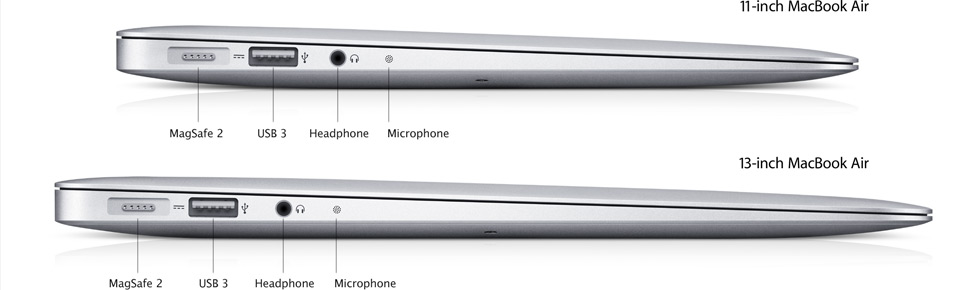
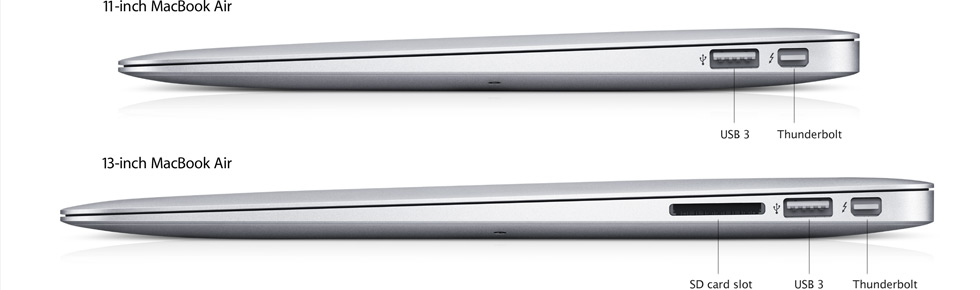
What’s more, if you’ve got your eye on one of those new MacBook Air models, the portable drive adds a lot of storage without requiring a large investment in dollars or weight. Buy an 11-inch with just 64GB internal storage for $999 from Apple, then spend about $125 more to increase your available storage by 750GB (with USB 2.0, you’ll be transferring at a half a gig per second, not speedy, but certainly acceptable for most uses). Better yet, spend $225 for 10 GB per second Thunderbolt speed–Thunderbolt is now standard on every Air. By comparison, you may beef up storage with a 64GB or 128GB SD card, but transfer speed is under 100MB per second, a whole lot slower than other options. Below, left-side and right-side views of the new Air, showing both USB 3.0 and Thunderbolt connectors.

Green, Blue, and Extremely Portable

One side is green and the other is blue. It stretches so your chroma-key productions have a lightweight, flat background. But it’s a good idea to stretch even more with clips.

Or: chroma-key, anywhere.

It’s amazing how easy portable video production has become. You can shoot high definition video with a smart phone, a tablet, a FlipCam (and similar products), an inexpensive video camcorder, a digital still picture camera… The list goes on.

Most of the time, the recorded video is real life… people in action, scenery, and so on. Sometimes, it’s interesting to explore new creative domains. Often, these explorations involve the placement of people or objects in imagined places, and this is often achieved through a technical miracle called chroma-key.

What can you (and some kids) do with chroma-key? Here’s a step-by-step example that’s fun to watch. (Click to watch the video.)

You know chroma-key: it’s the technology used to place your local meteorologist in front of a digital weather map. The subject performs in front of a green screen, and then, all of the green is (miraculously) dropped out of the image so that it can be replaced with your choice of alternative video. In fact, any color can be used as the chroma-key color, but most often, a deeply saturated green or blue is used because these colors are not (usually) seen in the colors of human skin or hair or eyes. The colored area is usually painted, or created with a cloth stretched very tightly and lit evenly. When using chroma-key, folds and shadows cause difficulty.

With these challenges in mind, I had very high hopes for the FlexDrop2 from Photoflex. The portable package is a big, lightweight fabric disc, not quite a yard in diameter. It sets up with not much more than the flick of a wrist, and opens to a taut five foot by seven foot panel. Very cool.

Mostly, the FlexDrop is flat, but the use of a small clamp here and there is necessary to eliminate all visible shadows and wrinkles. Unfortunately, it’s not a standalone device…it is designed to be attached to a lighting stand or other pipes or tubes (and these are rarely lightweight).

Hands on, FlexDrop2 really works. One person can stand in front of a field of nothing but blue (one side) or green (the other), and then, live or with a good edit application, the chroma-key process can be used to drop out the blue or green and drop in any video still, animation, graphic, or footage. Two people? Hang the FlexDrop2 horizontally. Another good use: as a background for stop-motion animation, but you will need to dress the tabletop surface with an additional green or blue cloth (exactly the same color as FlexDrop2).

At $165, the FlexDrop2 is a nice-to-have, a bit expensive unless you use it often. And, of course, there are less costly ways to make chroma-key happen: buy a cloth and stretch it yourself, paint a wall, etc. But this one is handy, portable, stretches nicely, stores without taking up much space, and does the job in a professional manner. One catch: it’s not so easy to collapse and pack away. This video shows you how to pack it up.

BTW: Thanks to Kristy and to Rebecca for their help with this article.