Overwhelming.
That’s the word we used when we first watched a 60-inch television set take over our family room.
No way would this TV set remain in the room. We had made a dreadful mistake. Living with this monster, even for a week, was simply unacceptable.
And then, we watched. Watching favorite movies, we noticed details in the background that we had never seen before. We’d darken the room and the experience felt superior to all but the best motion picture theaters. For the first time, we could clearly read every closed-caption, every sports score. In short, the experience was far better than we could have imagined.
Of course, the 60-inch TV set is not going anywhere. We’ve explored slightly smaller alternatives, but none offers the satisfying experience of the sheer size, scale and impact of the 60-inch screen.
Figuring out which screen type, which manufacturer, which features–all of that was useful research. Here’s the rundown.
Given the choice of plasma or LED technology, my eyes prefer plasma. I find the LED color palette to be too vivid, less lifelike, too difficult to adjust to my liking. Others may feel differently. During the inevitable research phase–which is not easy to do in the likes of Best Buy, but instead, far more successfully done in small, specialist shops because the sets are properly tuned and aren’t fighting big box store lighting–I found myself drawn to the plasma screens. Their reputation for greater power consumption, heat, reflectance and a darker room has proven to be a non-issue in our setup, which is, already, slightly darker than other rooms in the house. We have not noticed any change in our electric bill. If there is any substantial heat being generated, we simply haven’t noticed it.
Once the plasma decision was made, the choice of manufacturer became much easier. There’s a website that keeps up with the somewhat limited plasma industry, and apparently, there are just three companies in the consumer game: Samsung, LG, and Panasonic. The links in the previous sentence turn out to be quite useful. Each of these manufacturers offers their plasma wares in series form: the higher-end series include more features (3D, smart interfaces, etc.) and the lower-end series offer remarkably good image quality but less of the newest technology (improved black levels are a good example of what the higher priced devices offer that the lower priced models do not).

“Smart TV” brands Samsung’s interface and feature package. Other manufacturers offer a similar suite of enhanced features. Buying a large-screen TV also involves selecting the best feature package for your needs. This can be complicated, but CNET and other specialist websites can simply the process. Often, reliable journalistic websites offer better, more up-to-date advice than you will find in a large retail store. Smaller specialty stores offer a better combination of well-trained sales personnel and a more home-like viewing environment.
In truth, the image quality on all of these plasma television sets is so extraordinary that individual reviews or product tests can describe only incremental differences. The details available on a true HDTV set are extraordinary, and the color rendition, especially on the plasma models, given proper adjustment, are just terrific.
The sound quality is a different matter. This is the one place where the beautiful, giant TV sets fall short. The reason, usually, is speakers that point in the wrong direction (down toward the floor or cabinet, not toward the listener) and are also too smaller to provide the fidelity that should be commensurate with the picture experience. (For more about this, see my previous blog post about audio systems for big screens–some of the specific products may no longer be current, but it’s easy enough to research newer models.)
None of these sets are easy to set up. They are all large, and require great care. A professional installer is recommended, especially for a set as large as 50 or 60 inches (remember, the measurement is on the diagonal). They are very well-made, but you want to be very careful about twisting or torquing the screen (or dropping it!).

Available as an accessory, the Samsung television keyboard serves as both a remote control and an input device with full alphanumeric entry. It also includes a touch pad. When the Bluetooth connection works properly, this is a wonderful addition to a smart television viewing experience.
Back to set-up. Each of these sets is a sophisticated computer and a TV set, and each offers a remarkable range of software features. The interface relies upon a fairly traditional TV remote control, and, increasingly, upon a screen interface that is navigated, mostly, by up, down, left and right arrows, or entry of numbers. This is a woefully inadequate way to control a device with so many features. A touch-pad is a far better idea, and, in fact, a full wireless keyboard is an even better idea–when the Bluetooth feature works well enough to enable flawless communication between the TV set and what amounts to a rather large remote control.
Set-up also requires a level of coordination with other devices, including a DVD player, an audio system, your wireless network, and, in the most-likely-t0-be-troublesome department, the cable box that is not specifically designed for use with such a modern TV set.
Of course, our original intention was simply to watch TV on a larger, prettier screen. We, like so many other consumers, were so self-assured when we insisted that the extra features were completely unnecessary, not at all interesting. Naturally, we spend nearly all of our viewing time with those special features. For the most part, they are the television equivalent of the iPad’s apps, but in the smart television world of 2013, those apps are, in essence, video-on-demand channels that provide access to a stunning amount of movies, television programs, and much more. These apps are also available on the newest Blu-Ray DVD players, game systems, and on other devices. On TV sets, the critical factor is the computer processing power built into the TV set. As a matter of common practice, TV manufacturers do not provide sufficient processing power to allow the apps to operate quickly and efficiently, so performance is often adequate, but could be so much better with only a small incremental price adjustment. The newer videogame systems offer both the same apps and also the increased processing power. Of course, you can plug any of those systems into the big TV and bypass the built-in apps entirely. Apple TV, which costs $100, serves the same purpose; similar products from Roku are also low-cost solutions.
So what’s it like to watch such a big TV? Stay tuned for tomorrow’s show, er, blog article.









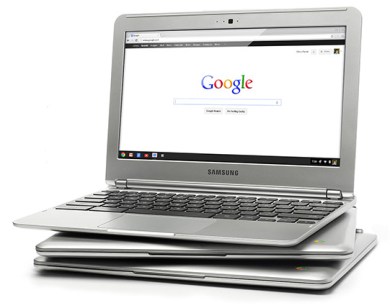
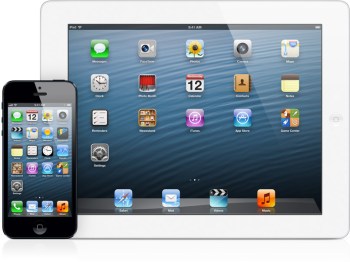 When the latest upgrades to the MacBook Air were released last week, I thought I might finally break my pattern–iPad for portability, iMac for serious work in the home office–with an in-between machine that could do both. After hours of research and experimentation with the Air in various settings, I decided to wait until the autumn to upgrade the iPad, once again leaving the portable out of the mix. Why? The Air does not connect via 3G/4G, but instead requires a separate network to be established on my iPhone (clunky solution, but it works). And, to my astonishment, I actually prefer the touch screen to the keyboard when computing in a mobile environment. I sacrifice a degree of functionality for the reduced weight and increased connectivity, but then, most of my mobile work does not result in an elaborate finished product–this, I do on a computer.
 Today is Sunday the 16th, and I have lunch at noon. That’s easy to see on the colorful Windows 8 interface. Right now, it’s 68 degrees and it’s going to rain today. Click through for details, and the weird non-intutitive interface design returns. It’s unclear what to do next, the brief instructions are unclear and the type is often too small to read. Click once or twice more, and the whole deal looks like Windows from the turn of the century. For reasons I do not understand, several “chickets” appear on the right side of the screen. These offer a combination of settings, search, and device access–not sure why these are shown separately, but the more I dive into Windows 8, the more I come up with “why would they do it that way?” questions. I’ve now spent several hours with Windows 8. Overall, I’d give it a “meh.”

 AirStash. Simple idea: load some movies on a 8GB or 16GB SD card–the ones you use in a camera that are about the size of a postage stamp–then wirelessly connect the small AirStash device to watch movies (or review documents) on your iPad, iPhone, or Android device. It costs about $125. Use it once and you’ll carry it everywhere, as I do.
 A ZOOM Q2H2. With cameras and camcorders now built into phones, why buy a small video recorder for $199? Because the sound and the picture quality is outstanding, but the device is small. What do I mean by “outstanding?” Video: 1920×1080, 30p HD. Audio: 24 bit, 96 kHz PCM. Record the results on an SD card.



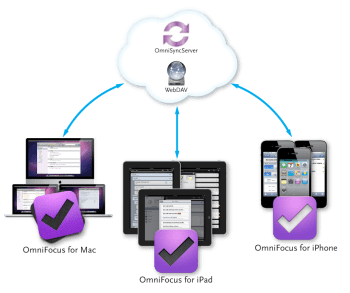 So what’s the big deal about OmniFocus? There are dozens of to-do and reminder apps, with sync, available for far less than OmniFocus.
 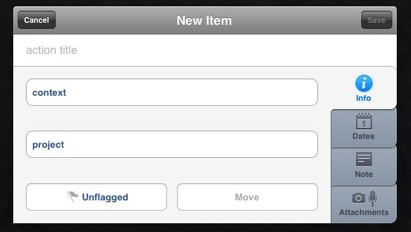 Although it is possible to make a quick task entry, the more complete entry panel is more useful. After naming the task, I select a context from my own list that includes: Awaiting Response, Call, Create, First Contact, Followup, Just Do It, On Hold, Purchase, Research, Schedule, Visit Web Site, and Write. Then, I select a project, again from my own list that includes: Art, Books, Digital Insider, Home, Music, Software, Travel, Web Site, and various, specific work-related projects. I can stop there, deciding to add a flag to any high-priority tasks, but I prefer to add a due date to every task (start dates are also an option, but I don’t work that way). There’s a nice big note field, and I use hat to capture URLs, reminders of the most recent attempted contact (left phone message on 3.13.2013; sent reminder email on 10.12.2012). I can add a photograph, .jog, .gif, .png, or record an audio message.


 Digital Insider