Gigapixel Images (Updated)

Consider this: your new-ish digital camera shoots images containing roughly 10 megapixels. That’s old news. All of the cool people are shooting images with 100 times as much resolution. Images with 1,000 megapixels!

Of course, these images are huge. Too large to print. But not too large to view on the web it’s difficult to take in the stunning clarity of the whole image, but it is fun to pick any part of the gigantic image and appreciate the clarity.

There are digital gigapixel panoramas, and digital gigapixel macro (close-up) images. But before you even consider making one yourself, you need to develop a plan and a process. think

in terms of shooting a series of panoramic images where the top, left, bottom and right sides must be perfected aligned with the image above, below and to each side. It can be done, but most tripod heads are not designed with this precision requirement. To do the job in the best possible way, take a look at the GigaPan EPIC Pro, a programmable mount.

Good video tutorials here.

If you’re interested in learning more, one very good source is the spring 2012 issue of a terrific new international photography magazine called c’t Digital Photography. Click here for access for past issues.

Here’s the world’s largest indoor image. Click to see the image the 360 cities site, where you can explore the Strahov Library in astonishing detail.

UPDATE: A team at Duke University posted a letter to Nature magazine. In a story published by DPReview, a theoretical design exists for a 960 megapixel camera that’s small enough to be used in the field. As they’ve imagined the new AWARE-2 camera, their work led to a design that arranges a series of cameras in a hemispherical arrangement, pointing at a single, spherical lens that the team have dubbed the ‘gigagon.’ The use of a single lens avoids the cost and complexity of having specialist optics on each sub-camera, while the curved design scales more easily than a flat array of cameras. The team believes this approach would continue to work for up to 50GP cameras.

From DPReview: “A diagram showing the hemispherical arrangement of the sub-cameras, and their relationship to the ‘Gigagon’ main lens (top right).”
Beyond the Easel – Serious Field Work

I visited B&H Photo in Manhattan with a sketched diagram in my hand, hoping to find something that would allow me to attach a shelf to my tripod. When I was using the tripod only for still photography, the need was there, but minimal. When I started using the tripod for drawing and painting (with a sketch board firmly attached to the tripod head), it became clear that I needed a place for my pastels, my paints, the water, the paper towels. When I added videography, the tripod kept the camera firm and fluid, but I needed a handy place for the microphone, the iPad, the Zoom audio recorder, and other supplies.

After trying to rig something on my own, and failing, I started visiting local hardware stores, and was able to cobble together a solution involving perforated steel strips and cotton twine. At best, I had devised a temporary solution. Entering B&H, my hopes were not high.

Then, I spotted a large, flat piece of plastic called a Tripad. Aha! This was the solution. As you can see in the image, the Tripad surface extends from two of the three tripod legs. The genius part–the part that I never considered when I was doing my own (lame-o) inventing was a brace that fit over the head of the tripod and supported itself by hanging onto the far leg. B&H has lots of tripods, and I happened to find myself there around dinner time, when the busy store wasn’t too crowded. The Tripad worked: it was stable, not too large, and, quite perfect. The surface measures 15 inches wide and 11 inches deep (plus the part that connects to the tripod legs); the second triangular piece fits over the head and onto the leg. It weighs three pounds and holds eight. It comes along with me, but mostly when I travel by car; it’s little heavy and large for casual use, but durable and solid for professional applications. Here’s the video; see for yourself. The Tripad costs $99, and you can buy it here.

Now, back in my inventing days, I was thinking (though never seriously) about a setup that might involve not a full shelf but a pair of arms extending, on the perpendicular, from the tripod legs. There is an artist’s tripod with this design (Mabef M27), but I could never quite figure out which search terms could be used to find such a contraption on Google.

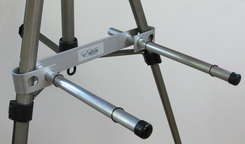
Then, I got lucky. I found the Easel Butler: Maximillian (or, for friends, Max). I liked the site immediately: the device “weights less than two bananas.” And that turns out to be true. In ounces, that’s 11.5, and in length, it’s 14 inches. There is a metal brace that slides over two easel legs. The brace has two holes: into each hole, you place a metal rod. The rods are kept in place by rubber o-rings (which you must be careful not to close, especially when working in the field). There’s a bag that attaches to the far side of the easel, a counterweight. With Max’s arms outstretched, I was able to place a full box of pastels without once worrying about an accident due to instability (clumsiness is, of course, another matter entirely). Easel Butler sets up in an about a minute, and requires about as much time to strike and put away. It comes with a nice little bag. It’s sturdy, well-thought-out, and well made. And the whole package is light enough for anyone to take along, and small enough to fit into a suitcase so it can travel with you, anywhere in the world. Want to see it in action? Watch this… Or just buy it here for $37.95.

I’m happy. A month ago, I was traveling some inept path with no real understanding of how to solve a problem. Now, I have two good solutions, each well-suited to a particular creative application. Below, some additional pictures that may convince you to invest, or, at least, to think differently about the way you work when you create.

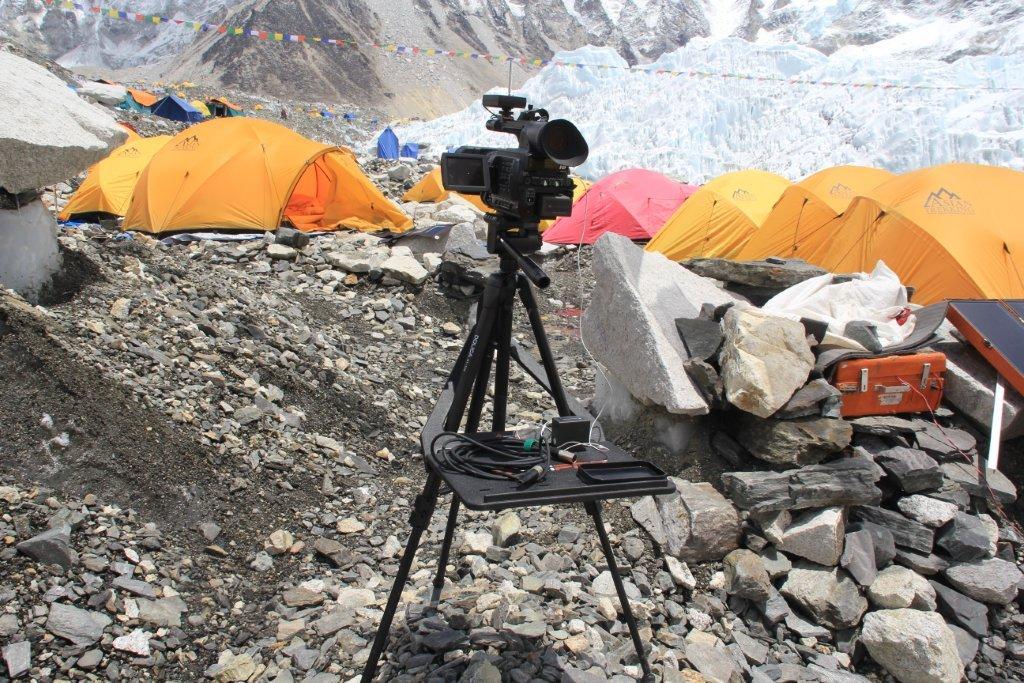
Here’s the Tripad on a trip to Mount Everest.

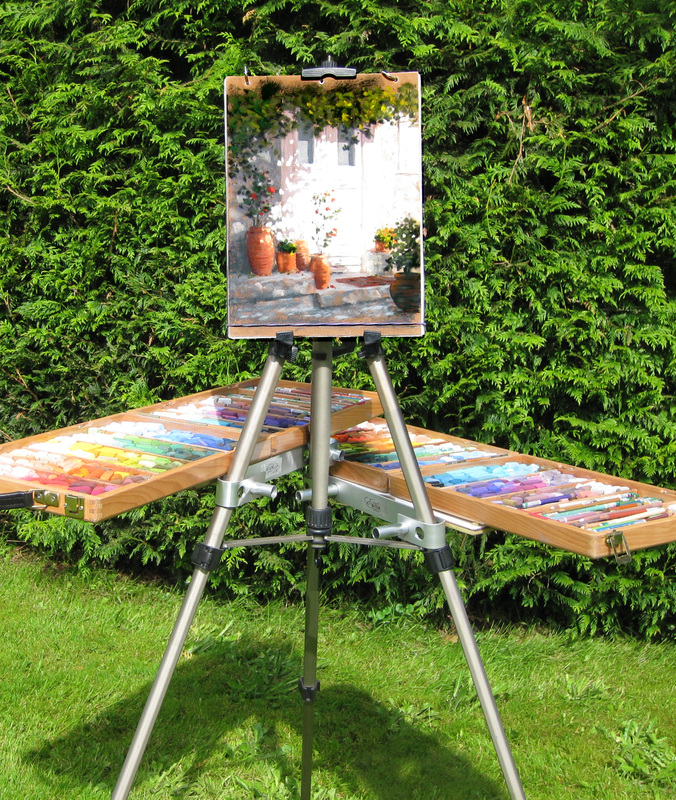
I hadn’t considered this possibility before, but the Easel Butler allows one pair of arms to be attached to all three sides of the tripod. For a pastel artist, or a serious videographer or photographer, this is a terrific (and extremely cost effective) solution. Lightweight, too!

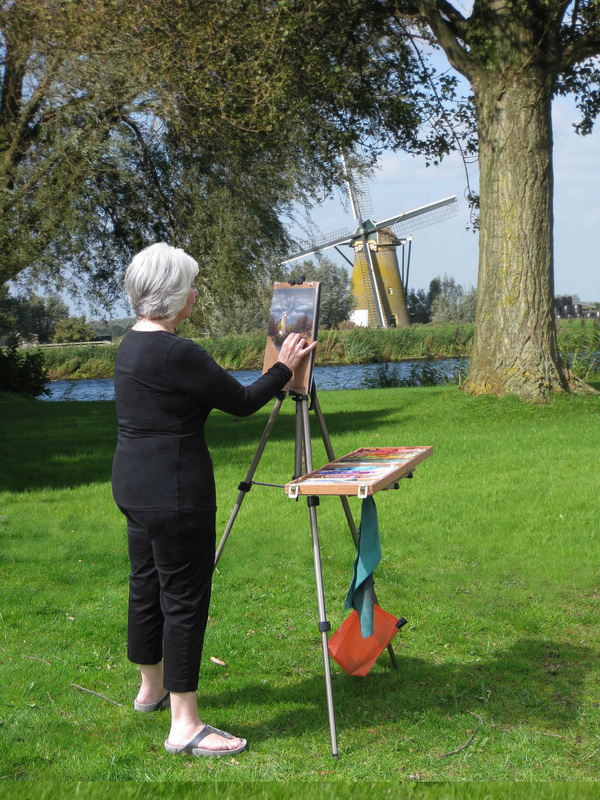
Here’s a more relaxed, in-the-field version of the Easel Butler in use. Very, very simple.

A Great Idea for Great Ideas

Once upon a time, OmniGraffle software was provided free with every Apple Mac computer. That’s how I learned about it. Now, I use OmniGraffle on my iPad and the desktop. When it comes to sketching out ideas, and presenting them in a clear and colorful manner, there is no better (or easier-to-use) product.

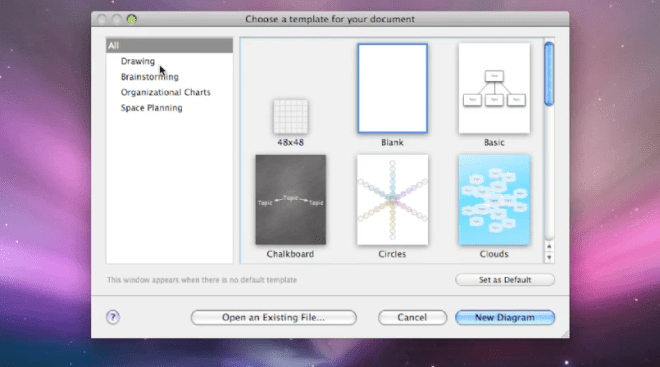
So, what does OmniGraffle do? Well, it depends upon what you want it to do. Start with a blank sheet, or some on-screen graph paper, or set yourself up for a cloud cluster (also called a mind map), or a whiteboard, or a chalkboard. There are connected notes, so you can use it as a kind of bulletin board, Whatever works for you, you’ll find the basic template in the full Standard or Professional version for use on the Mac (a great many features are available on the iPad version, which may suffice for some users).

Choose the template, then start drawing. Easy enough to begin with a box, color it, shade it, add text, make a copy, the sorts of things that you do in PowerPoint or Keynote all the time. Here, the tools are more varied, more versatile, including a bezier tool to draw shapes as you would in Adobe Illustrator (if you don’t know how to do this, it’s worth asking someone for help, but once you understand how it works, you’ll find yourself using this tool quite often).

So, let’s say that you begin with a free-form drawing, a visual exploration, a sketch to explain an idea to yourself or to others. It begins to make some sense, so you want to change its form, maybe move into a cloud of connected ideas, or a set of related on-screen index cards, or an organizational chart with colors to indicate levels or positions. Easy to do–this software is designed for versatility, and for intuitive thinking. The results can become quite sophisticated–and yet, they are not difficult to pull together, even under the pressure of time.

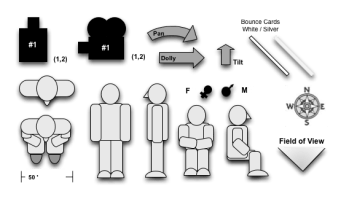
Automatic layouts save time, and make everything look a lot tidier, a lot more clear. There’s quick and easy access to frequently used tools, like color palettes and the font selector. There’s a user community called Graffletopia that creates “stencils” that can be used to create, for example, a director’s plan for film, or visualizations for software programmers. Browsing through Graffletopia, the utility of OmniGraffle becomes very clear: this is a visualization tool for working professionals. It’s easy to use, versatile, and, you’ll find, quite popular among certain knowledgable groups.

OmniGraffle is not a drawing tool, but instead, it is a tool for making (and easily revising) diagrams. I like the language from Omni’s website: “OmniGraffle knows what makes a diagram different from a drawing, and gives you the tools to create amazing diagrams quickly and easily. Lines stay connected to their shapes, unlike with illustration programs, where you would have to redraw your diagram every time you moved something.” As someone who often uses visuals to explain–and has become quite tired of the limitations of, say, Keynote or the level of sophisticated required for Adobe Illustrator–OmniGraffle feels just right to me. I find that the interface is intuitive (best if you’re already a Mac user), and that, from time to time, I need to take a moment and figure out how a tool works. That’s good–it’s just a few steps more sophisticated than my current abilities.

Most of the time, I’m sketching a diagram between meetings, capturing the basic idea. And although I can complete a pro-quality diagram on the iPad (and often do), I find myself in need of some certain advanced features, such as import/export from/to Visio (a Windows-only product). Most of the time, my diagram is on the simple side: colored boxes with type, perhaps a cloud to indicate an interesting idea. By holding my finger down, then dragging, I can group my clouds and/or boxes. Better yet, a smart selection tool allows quick selection of, for example, just the blue rectangles. I can create Adobe-style layers, then copy, or turn them on and off. Very handy, qick, and effective. Easily learned, too, in daily use, the iPad version has proven to be extremely useful, in part because it combines some of the best features found in OmniGraffle Professional (such as tables) with a sophisticated automatic diagramming tool, and a freehand tool, too.

To be clear, there are three different OmniGraffle products, each with its own unique set of benefits.

OmniGraffle for iPad costs $49.99 from the AppStore–a high-priced product that turns out to be a very good value because it does so much, so easily. OmniGraffle Standard, for Mac, costs $99.99, and OmniGraffle Professional, also for Mac, costs $199.99. Compare their features here. And, happily, you can get a free trial download for either of the Mac products (and any of the many excellent OmniGroup products). They do things the right way. It’s impressive.

Easy-to-Use Audio Studio-to-Go

The Zoom H4n has become one of my favorite tools, but most people have never heard of it, or seen it, or even know that such a thing exists.

Zoom makes portable audio recorders–pocket sized recording studios about the size of Sony’s original Walkman, but so much more versatile. This is the ideal companion for a digital camera or camcorder–with far better sound, and far more control over the recording process. It’s ideal for recording of music rehearsals, recitals, and performances. It’s handy for audio interviews, and for the recording of meetings. With proper cabling and a phono pre-amp, you can digitize your vinyl LPs. It’s a useful four track audio recorder, so you can use it to make a record. And, of course, you can use it to listen to music, speeches, podcasts, any audio recording with remarkable fidelity because everything is digital.

Let’s take it from the top…and the bottom.

On top, there is an X-Y (crisscrossed) pair of small microphones. The quality is good, the sound is clean, and they can each be adjusted to cover either a 90-degree pickup area (for more intimate situations or to reduce unwanted noise), or a 120-pickup pattern (to pick up a wider area). Or, plug one or two professional microphones into the bottom (1/4 inch phono plugs or XLR connectors). Or, plug an 1/8 inch mini stereo cable into the mic jack on the back). Control the input level by watching digital VU meter on the small golden screen (backlit when necessary) and adjusting the rocker switch with one finger during the record session.

Here’s a closer look at the screen. No, it’s not iPhone quality, but yes, it’s functional. Time code runs on top, file number next, then sound levels. Buttons below allow track selection, and in another mode, allow selection of files and formats. Buttons are small, screen is small, but everything works fine in the field.

You can choose to record in either .wav (high quality) or .mp3 (low quality, but smaller file sizes) at various sample rates. In multitrack mode, you can record on each of up to four tracks, or play back on up to three of them. Buttons are small, but overdubbing is within the capabilities of this little machine, and that’s useful if you are recording your own tracks for a music demo, for example, because you can listen to your primary vocal while laying down a harmony track, for example, or listen to the drum track while playing your saxophone).

For more sophisticated work–and an easier time–use the Zoom H4n as the interface between, say, your microphones and a more robust Digital Audio Workstation (such as Logic Pro, Garage Band and Samplitude), but, sadly, not ProTools, which requires only M-Audio devices.

Need a metronome or a guitar tuner? They’re built-in, too.

You will record on an SD card. Power comes from either an AC cable or handy AA batteries. You can plug the Zoom H4n into your computer via a USB micro connector. If you need more battery time, flip into “stamina mode” which shuts down some features and dramatically increases recording time (6 hours in normal mode, 11 in stamina mode).

 The Zoom H4n is all so well thought out! I wish every product was as thoughtfully designed!

Recently, I used the Zoom to record audio interviews while recording video interviews on the Olympus PEN EP-3 digital (still) camera. I placed the Zoom just out of frame, and later, in editing, matched the audio track from the Zoom with the EP-3’s video and audio tracks (once synchronized, the Olympus audio track was muted, and subsequently, replaced). Under the right circumstances, this is a better solution than a wired external microphone or a finicky wireless microphone. What’s more, the Zoom provides broadcast-quality results. The sound quality is fabulous. And because the Zoom is small, it fits into my small shoulder bag alongside the small micro four thirds Olympus PEN EP-3. This is a complete HD quality remote shooting rig that I can easily carry in a shoulder bag with plenty of available space for an iPad, wallet, cell phone, ear buds, and (much) more. Add a 32GB SD card, and I can carry hundreds of record albums with me, just in case I feel like listening, not recording.

There is so much more. If you’re intrigued, simply download the instruction manual.

The Zoom H4n price: under $300. And, for $199, you can enjoy a similar device with reduced features with an H2n (seems less sturdy to me, though). And if that’s still too much, Zoom offers a $99 alternative, model H1.

Go-Anywhere Hard Drives + MacAir Storage Ideas

This year, one of my projects has been a documentary about my father. I shot the documentary with an professional HD camera, edited in Adobe Premiere Pro on an iMac, and found myself in a mess of troubles. Then, I learned that serious editing requires an external hard drive. I’ve become a fan of these small devices, in part because they speed up the process and reduce crashes, and in part, because it’s easy to tote the whole project from one computer (at my home) to another (in my office, an hour away). When files are especially large, it’s helpful to bypass digital transfer via ftp and the like, and simply ship the entire drive from one place to another.

Mostly, I’ve been using  GoFlex Pro drives from Seagate. All of the images, video, and audio files that I recorded in the UK in May are now on a 750GB drive that costs about $125. It’s about 3 inches by 5 inches by a half-inch thick, and weighs about a third of a pound. At 7200RPM, it’s fast. It comes with a removable cable adapter, so you can use it as a FireWire 800 drive (for video editing), or as a USB 2.0 drive (offering about half the data transfer speed of FireWire 800, but useful because not every computer includes a FireWire 800 jack). Facing the future, you can buy a Thunderbolt adapter, which allows a connection that’s a dozen times faster than FireWire 800. The flexibility may be useful, but the cost is high: a $90 adapter for a drive that costs $125. (Note that Thunderbolt portable drives are not yet available, and that Thunderbolt desktop drives are still quite costly.) In any case, this drive is designed for use by either a Mac or a Windows computer.

If you haven’t explored portable external drives in a while, you’re likely to be surprised by their appealing combination of small size, light weight, high capacity, speed, and reasonable price. Some even come in colors (not sure why this is important, but it is a trend worth noting). Whether you’re buying for back-up, for convenience (no need to bring your laptop; just bring the drive), or for special projects, they’re worth a look.

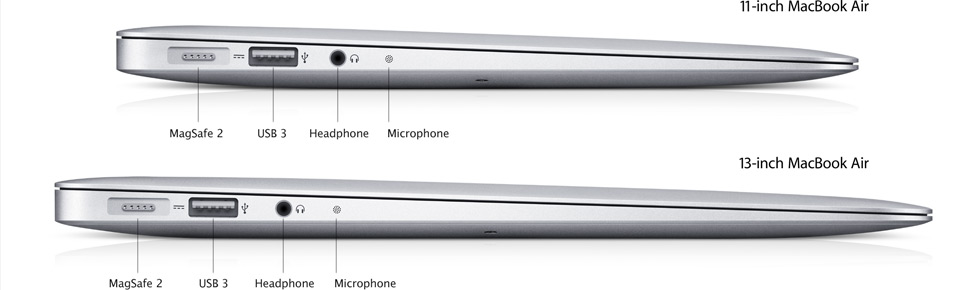
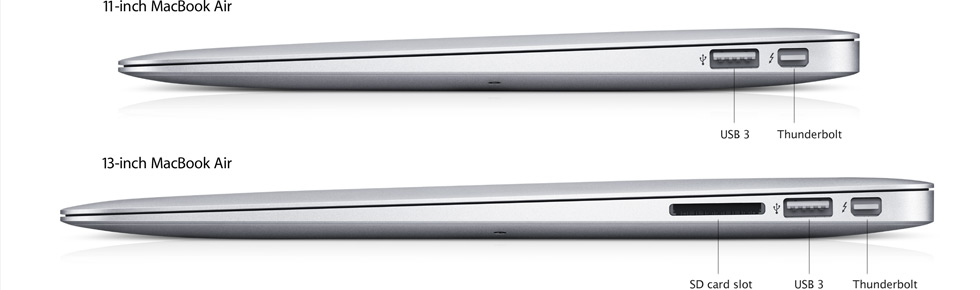
What’s more, if you’ve got your eye on one of those new MacBook Air models, the portable drive adds a lot of storage without requiring a large investment in dollars or weight. Buy an 11-inch with just 64GB internal storage for $999 from Apple, then spend about $125 more to increase your available storage by 750GB (with USB 2.0, you’ll be transferring at a half a gig per second, not speedy, but certainly acceptable for most uses). Better yet, spend $225 for 10 GB per second Thunderbolt speed–Thunderbolt is now standard on every Air. By comparison, you may beef up storage with a 64GB or 128GB SD card, but transfer speed is under 100MB per second, a whole lot slower than other options. Below, left-side and right-side views of the new Air, showing both USB 3.0 and Thunderbolt connectors.

Green, Blue, and Extremely Portable

One side is green and the other is blue. It stretches so your chroma-key productions have a lightweight, flat background. But it’s a good idea to stretch even more with clips.

Or: chroma-key, anywhere.

It’s amazing how easy portable video production has become. You can shoot high definition video with a smart phone, a tablet, a FlipCam (and similar products), an inexpensive video camcorder, a digital still picture camera… The list goes on.

Most of the time, the recorded video is real life… people in action, scenery, and so on. Sometimes, it’s interesting to explore new creative domains. Often, these explorations involve the placement of people or objects in imagined places, and this is often achieved through a technical miracle called chroma-key.

What can you (and some kids) do with chroma-key? Here’s a step-by-step example that’s fun to watch. (Click to watch the video.)

You know chroma-key: it’s the technology used to place your local meteorologist in front of a digital weather map. The subject performs in front of a green screen, and then, all of the green is (miraculously) dropped out of the image so that it can be replaced with your choice of alternative video. In fact, any color can be used as the chroma-key color, but most often, a deeply saturated green or blue is used because these colors are not (usually) seen in the colors of human skin or hair or eyes. The colored area is usually painted, or created with a cloth stretched very tightly and lit evenly. When using chroma-key, folds and shadows cause difficulty.

With these challenges in mind, I had very high hopes for the FlexDrop2 from Photoflex. The portable package is a big, lightweight fabric disc, not quite a yard in diameter. It sets up with not much more than the flick of a wrist, and opens to a taut five foot by seven foot panel. Very cool.

Mostly, the FlexDrop is flat, but the use of a small clamp here and there is necessary to eliminate all visible shadows and wrinkles. Unfortunately, it’s not a standalone device…it is designed to be attached to a lighting stand or other pipes or tubes (and these are rarely lightweight).

Hands on, FlexDrop2 really works. One person can stand in front of a field of nothing but blue (one side) or green (the other), and then, live or with a good edit application, the chroma-key process can be used to drop out the blue or green and drop in any video still, animation, graphic, or footage. Two people? Hang the FlexDrop2 horizontally. Another good use: as a background for stop-motion animation, but you will need to dress the tabletop surface with an additional green or blue cloth (exactly the same color as FlexDrop2).

At $165, the FlexDrop2 is a nice-to-have, a bit expensive unless you use it often. And, of course, there are less costly ways to make chroma-key happen: buy a cloth and stretch it yourself, paint a wall, etc. But this one is handy, portable, stretches nicely, stores without taking up much space, and does the job in a professional manner. One catch: it’s not so easy to collapse and pack away. This video shows you how to pack it up.

BTW: Thanks to Kristy and to Rebecca for their help with this article.

What about Black-and-White?

Back in the analog stone age, shooting in monochrome was a creative choice made in advance. You’d buy a few ISO 400 rolls of Ilford HP5 or Kodak Tri-X, and head out for a day of serious photography, hoping for just one image worthy of framing.

In fact, black-and-white analog photography offers several advantages. There is at least four times as much picture information, so contrasts can be stronger, textures can be more refined, and enlargements can be, well, larger. About half of this work is done in the field, mostly by selecting and composing with intelligence, and by selecting an appropriate optical filter to place on the lens. For example, sky contrast can be dramatically increased by using a red filter, but sometimes, detail in shadows is lost with a red filter, so an orange filter may be more suitable. Corrections are then made in the analog or digital darkroom, a trial-and-error process that becomes easier after a lot of hours of experimentation and instruction.

Working with a digital camera, the best black-and-white images are derived from color images, but maybe not in the way you’d think. The adventure begins with a digital camera that can shoot RAW images–so plan to spend at least $500 on the camera. Lesser cameras, and less-than-serious photographers with better cameras, shoot in JPG to jam more images onto an SD card. If you start with a JPG created in the camera, your black-and-white images will lack detail, clarity and snap. Your expensive digital camera offers an instant monochrome option. No, you shouldn’t use it, not if you are serious about your photography.

Instead, you can achieve miracles by post processing your RAW image in Aperture, Photoshop, or other software capable of handling RAW images. With desktop software, you can add the equivalent of colored filters and gradient filters, with a level of precision unavailable in the field, and unavailable in old school darkrooms.

In his book, Hoffmann goes into considerable detail about how this picture was made, and why it is so effective. He’s a very good teacher.

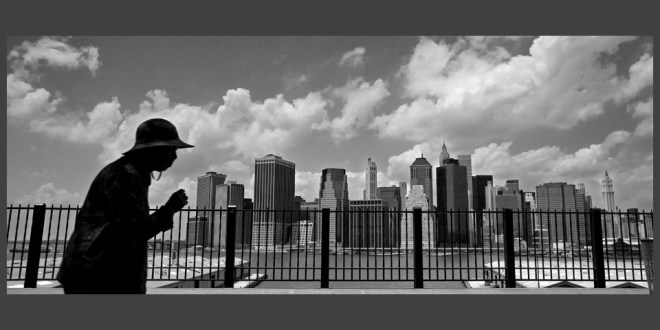
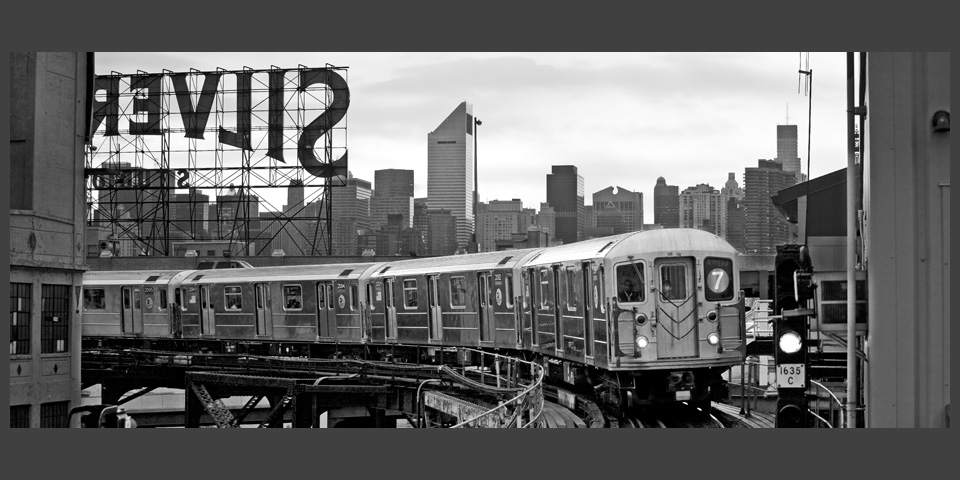
Is it worth the time? It’s worth the time if you train yourself to create the best possible images by learning a lot about composition, mood, street photography, landscape work, architectural photography, and abstract work from a master teacher. I’ve spent the past month or two studying the second edition of a fine book entitled The Art of Black and White Photography by Torsten Andreas Hoffmann, published by Rocky Nook Press. He provides the necessary technical information, but spends most of his instructional time on important photographic ideas: how to avoid the cliché, achieving balance, dealing with visual irritations that cannot be moved, capturing people in their natural surroundings, visual rhythm, form and composition. Hoffmann is especially effective when he writes about, and photographs in, a strongly graphic style: strong contrasts, superior use of line and form, repetition to suggest speed or solidity. (Study the three Hoffmann images in this article, and notice, for example, the repeated pattern of small verticals–the fence posts in the top image, the decorative balusters in the second, and the train doors in the third supported in the distance by the verticals of the Manhattan skyline). These are not snapshots–they are photographs–and if there was any doubt about a blurry line between those two ideas, it disappears here. These are advanced ideas, most suitable for the experienced photographer or for the ambitious newcomer. The reward is in the learning, of course, and also in the tour of Hoffmann’s portfolio, which is sampled in this article and offered in expansive form on the photographer’s website.

The photographer is based in NYC. This image is one my favorites, but it comes from his website, and does not appear in the book.

A Quality Camera You Won’t Leave at Home (4 of 4)

Continuing the series about small, high-powered digital cameras, our discussion finishes up with video. And this is the part that confuses me most. These cameras shoot very pretty pictures–high-definition, widescreen, beautiful image quality. But none of these cameras allows the user to control or monitor the audio associated with that video.

Audio Rant

Let me rant on that first, and then, we’ll talk pictures. Each of these cameras can record audio with a built-in microphone, usually a stereo microphone. What’s missing: an audio meter so you can see whether the audio being recorded is too loud or too soft, a jack for an external microphone, and a jack for an external earbud or headphone to monitor the audio as it is being recorded. In comparison with the photo and video imaging in these cameras, these audio capabilities are very simple. But they are largely absent.

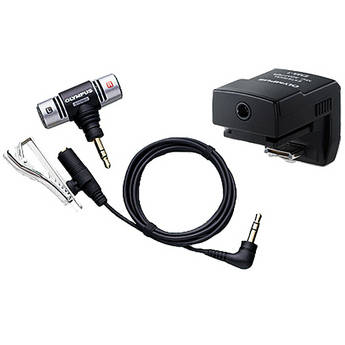
This Olympus device adds a microphone via the camera's flash shoe. It costs $60 at B&H, the source of this photo.

Olympus offers an $89 microphone and cable (SEMA-1) that slides into the hot shoe of the PEN cameras, and it works nicely, but the cable is short, and because it’s connected directly above the lens, the cable finds its way into the shot whenever the camera is turned or manipulated. So what we have is a high-quality digital audio recorder that’s useful only to record “wild sound”–the ambient sound on location. To record sound that’s comparable in quality to the video side, you must record audio separately, on a standalone digital recorder, and then match the audio and the video, on separate tracks, in your editing software. That’s possible, if you have time and patience, and a good set of editing skills. (This will be the topic of an article in the near future.)

End of rant.

Very Good Video

On the picture side, the cameras are very, very good good. Even the $499 Olympus E-PM1 can record up to 29 minutes of  magnificent 1080 60i HD video by just pressing a button. The newest Olympus E-M5, scheduled for April, takes a leap forward by recording H.264 .mov files, making capture and editing easier, and mostly eliminates the dreaded “jello effect” in which vertical lines wobble during a pan of even moderate speed–an improvement over current PEN cameras.

This rather ugly picture is part of a rather clear video explanation of the jello effect.

This is not to minimize the astonishing video image quality available from these cameras–perhaps more astonishing because motion video is not the primary purpose or function of these cameras. Certainly, we’re seeing professional videographers use their DSLRS, with special grips, to record television programs–digital photography has really changed the way we think about video production. And, if you place a mirrorless camera on a tripod, you can achieve stunning results. Even hand-held, with image stabilization, automatic exposure, and automatic focus, the Olympus and Panasonic cameras can do great things.

The same is true, with varying degrees with success on the focus side, and in contrasty situations, for competitors. Of course, you can use just about DSLR to shoot terrific still pictures and still video. And, in most cases, you’ll be able to do so with an earplug, an external microphone, and much more control over the video as it is being recorded. But those cameras are bigger and heavier than their mirrorless counterparts.

Summing Up

If you want to own a full-featured digital camera that takes great pictures and offers every conceivable feature, buy yourself a DSLR. You can buy a very good one, perhaps the Canon EOS Rebel T3i with an inexpensive 18-135mm lens, with an 18 MP APS-C sensor for just over $1,000.

For me, this is a camera that’s fun to use, fun to own, and likely to leave home only sometimes. It’s just too big and too heavy for me to carry along with me. Certainly, I would bring it special events or when I feel like spending an afternoon taking pictures.

I would be more likely to carry something like the new Canon G1X ($799), which offers a 14 MP sensor that’s slightly larger than the one used by micro four thirds cameras, but smaller than the typical APS-C standard. It’s a wonderful small camera, a bit heavier and bulkier than it appears to be, with an optical viewfinder (old school: you simply look through it, like a telescope) with plenty of manual control. The lens deflates my enthusiasm: it’s a zoom, 28-112 mm with not much of a large aperture: f/2.8-5.8. If this camera was offered with a normal prime lens and a maximum aperture of, say, f/2.0, I’d be all over it. Still, this is a camera I want to know more about.

Essentially, I want the equivalent of a good DSLR, but I am not willing to carry around anything that’s bulky, large or heavy. This is why mirrorless cameras intrigue me. So far, I believe the Olympus E-P3 offers the best combination of solid construction, good design, superior image quality, and, most important of all, very good prime (non-zoom) lenses at reasonable prices (and, zoom lenses, too). I love the fact that these cameras (like their DSLR siblings) shoot high quality video as a kind of bonus. And as much as I have come to enjoy the EP-3, I am very intrigued by the new-ish Panasonic GX1, and even more intrigued by the E-M5, the first new Olympus for 2012.

For a complete rundown on all mirrorless cameras, circa December, 2011, click here.

And, BTW, here’s a really clear review of the E-P3.

—–

Here are the links to the rest of The Quality Camera That Goes Everywhere:

Part 1: Lens

Part 2:  Sensor

Part 3: Body

A Quality Camera You Won’t Leave at Home (3 of 4)

Good solid camera body, good grip, pancake-style wide angle lens, easy to handle, easy to control. I like the Olympus PEN E-P3 camera.

In the two past articles, we looked at digital camera systems by focusing on the lenses and the image sensors. Now, it all comes together with an article about digital camera bodies. As you know from the previous two articles, I am especially interested in a camera system that offers high quality images but does so with a small, lightweight package that I can carry with me everywhere I go.

What the Body Should Do

Despite too many features and never enough buttons or controls, every digital camera body serves essentially the same functions. Backing away from the land of the complicated, here’s what I expect from a digital camera body:

It must be easy to handle, and hold steady, while composing and taking a picture. It is exceedingly difficult to do this with just two points of contact. You need a triangle for stability. Or, you need a tripod (or monopod). At the very least, the body must include a sturdy hand grip.

The various knobs, buttons and switches must be large enough to manipulate, and well-placed so they can be operated without looking at the labels.

The most common operations should require no more than one touch.

It must offer automatic exposure and automatic focus, each with a manual option.

Ideally, the body should be stabilized by technology as well as my own hands.

What Most Bodies Don’t Do

In the land of micro four thirds, APS-C and similar cameras, and on most point-and-shoot cameras, there is no built-in viewfinder. This is a problem for several reasons.

First, the viewfinder completes the triangle that allows steady hand-held work.

Second, the viewfinder blocks out light and distraction so you can concentrate on composition and exposure.

Third, if the viewfinder is an accessory, it’s likely to be small, expensive, and easy to lose. Expensive: about $250 for a high-tech item that’s much smaller than a golf ball.

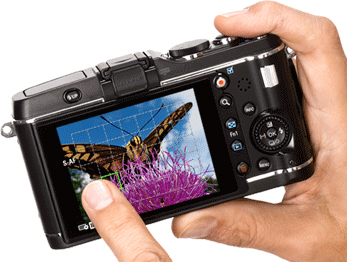
Here's a look at the back of the E-P3. The left finger is pointing at a focal point. In one mode, this finger touch can trigger the shutter.

Features

Camera manufacturers love to market their cameras by emphasizing features. After using an E-P3 for several months, my initial thought has been confirmed time and again. Most of what the camera does, I don’t need. And, as it happens, what a micro four thirds camera does is somewhat less than what a DSLR does. Most of it is clutter, or, at least, image work that would be more effectively done not in the field, but with a portable or desktop computer whose screen allows a far more critical approach to changes in color temperature, or conversion to monochrome.

How I’ve Learned to Shoot

I shoot RAW. That’s important. Shooting RAW images allows me to capture as much picture information as possible, and then, in the quiet of my home office, I edit the images, knowing that the original remains intact. RAW images require more storage space on SD cards than JPEGs require–so buy yourself an additional card (they are becoming inexpensive) or two. I should mention that RAW shooting requires special software, such as Apple’s Aperture or Adobe Bridge (comes with Photoshop).

I use manual and automatic exposure, and I use manual and automatic focus. When I have the time, and the shooting situation allows, I will mess with f/stops and shutter speeds. Not every shooting situation allows, so I rely upon automatic.

On the Olympus E-P3, I leave White Balance in automatic mode, and I do the same with Image Stabilization. Two fewer things to think about.

I keep the Art Filters off (I can apply special effects later), and stick with either Natural or Vivid images.

I shoot in 4:3 format, and may decide to crop later on.

I keep the flash in the off position. I’m glad it’s built into the E-P3 (it’s not always part of micro four thirds cameras), but I don’t use it except in special situations because I use faster (larger aperture) lenses.

The OLED screen on the E-P3 is a touch screen with just a few features that make use of this technology. One that I use often combines the selection of the image’s focal point with a shutter release. I just point at the spot where I want the image to be focused, and the EP-3 takes the picture. Cool!

Buttons, Menu Screens, and Interfaces

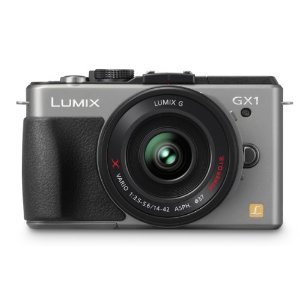
A handsome, modern body for Panasonic's very capable GX1 micro four thirds camera.

At first, every new interface seems confusing. Use the camera every day for a few weeks, and everything becomes easier. I like the way that Panasonic’s GX-1 displays f/stops and shutter speeds. I like the layout of the Olympus E-P3’s physical buttons are laid out (but I wish each one contained a tiny LED so I could find it in the dark). I find the grid guides very useful on the Olympus as well–and I never turn them off.

Every camera includes some outstanding button and menu features, and some that don’t matter a whole lot in the real world. When you’re in the store, you may be much affected by the confusing menu. Get past it. Instead, concentrate on whether the camera feels good in your hands, whether the technology is sufficient for your needs, and on the quality of the lenses that can be used with the body you have in mind.

Advanced Technology

In this era of high-tech everything, it’s easy enough to overlook the obvious. Olympus, Panasonic and the others have packed an enormously sophisticated computer into a box half the size of a roast beef sandwich. The result is a camera system with tremendous flexibility and very impressive image quality.

Although I’ve questioned the accessory viewfinder concept, the implementation is very impressive, moreso on the VF-2 with its 1.4 million dots (very high resolution, very bright screen), less so with the more utilitarian, and less costly, VF-3 (just under a million dots, and you’d be surprised by the difference). The VF-2 costs $249, and the VF-3 costs $179. These fit onto any of the recent Olympus PEN cameras (see below).

Face detection amazes me. Scene Select  makes it easy to, for example, shoot fireworks without messing around with optimum settings. Very convenient.

Small stuff matters, too. An infrared beam allows accurate focusing under dim lighting conditions.

It’s easy to shoot multiple exposures and to remain in focus while doing so.

These cameras shoot movies (not uncommon in 2012, but still amazing to me, and detailed more fully in the next article).

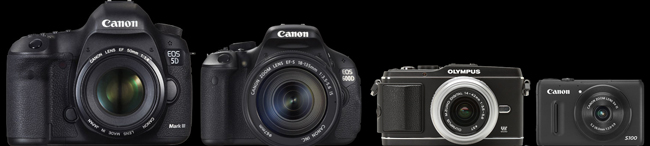
Here's a relative size comparison between a full-sized professional DSLR, a consumer DSLR, a micro four thirds camera with interchangeable lenses (but no mirror, so it's not an SLR, and so, it's a mirror less camera), and one of the best small compact cameras.

Body Styles

In fact, there are about a hundred mirrorless cameras and camera bodies for sale at B&H.

At $7,000 or more, Leica makes four full-frame mirrorless cameras; their lenses are exquisite, and, sadly, so are their prices.

Fuji’s X-Pro 1 is a 16MP APS-C camera, coming in April, that costs $1,699 for the body. It’s a terrific camera, but somewhat heavy (some would say, professional in heft) in this smaller class. Sony’s NEX-7 is a 24 MP champ, but I find the lenses too large for the small body; buy the body with a kit lens for $1,349, or the 16 MP model, with fewer features, for half that price.

The Nikon 1 camera comes in two models: the J1 with a 10-30mm lens (in 35mm lingo, that’s a 27-72mm lens) for $600 or the V1, which adds a built-in viewfinder, for $900. The Nikon 1 comes in colors, including red and pink (two years from now, will anybody be glad they bought a red camera body with a red lens?)

The micro four thirds cameras also come in colors (sigh). The starter model is Olympus’s $499 E-PM1, complete with kit lens, or Panasonic’s $399 GF3, body only. When I compare these two cameras on the very useful Snapsort website, the winner is the Olympus because it includes in-camera image stabilization, and other features associated with costlier models. When hold these two cameras in my hand, I find the controls on the Olympus a bit tiny and the lack of a grip  off-putting, but in truth, the camera is small enough for use without one.

The mid-price models ($699) are Panasonic’s G3 for including the kit lens and thankfully, a built-in viewfinder (though not as good as the better add-on versions), which competes with the Olympus E-PL3. Both offer tilt LED screens so you can use the camera by holding it over your head or at the level of a child or pet’s eyes.

Serious photographers will likely spend a bit more money for either the Panasonic GX-1 ($799 with kit lens) or my current favorite, the Olympus E-P3 ($899 with kit lens). For me, it’s a close call, because both cameras are solidly built (more solidly, it seems, that their lower-priced kin), and because the cameras are intelligently designed, with every feature, and every button, in a reasonable, logical place. The Olympus feels better in my hands, but you may prefer the Panasonic for the same reason. I like the Olympus images a lot–the color is true, the sharpness and depth are present in every shot, and, well, the camera just makes sense to me.

Quick Changes

This market changes every year, and sometimes, more than once a year. A new Panasonic model GF5 is likely by summer. Olympus’s new E-M5, with a 16 MP sensor, image quality that competes successfully with the larger APC-S technology, and a built-in viewfinder is just around the corner. BH Photo is already selling it with delivery likely in late April, for $999 for the body alone, or $1,299 for the body with a new 12-50mm kit lens. And everybody is wondering whether Canon will enter the category with a powerful, small, interchangeable lens kit of its own.

And…

Oh, one more thing. Video. Now standard in many digital cameras, the video capabilities of mirrorless cameras are worth a look. The video article will be final one in this series.

Part 1: Lens

Part 2:  Sensor

Part 4: Video